Understanding the Paint-Bucket Tool
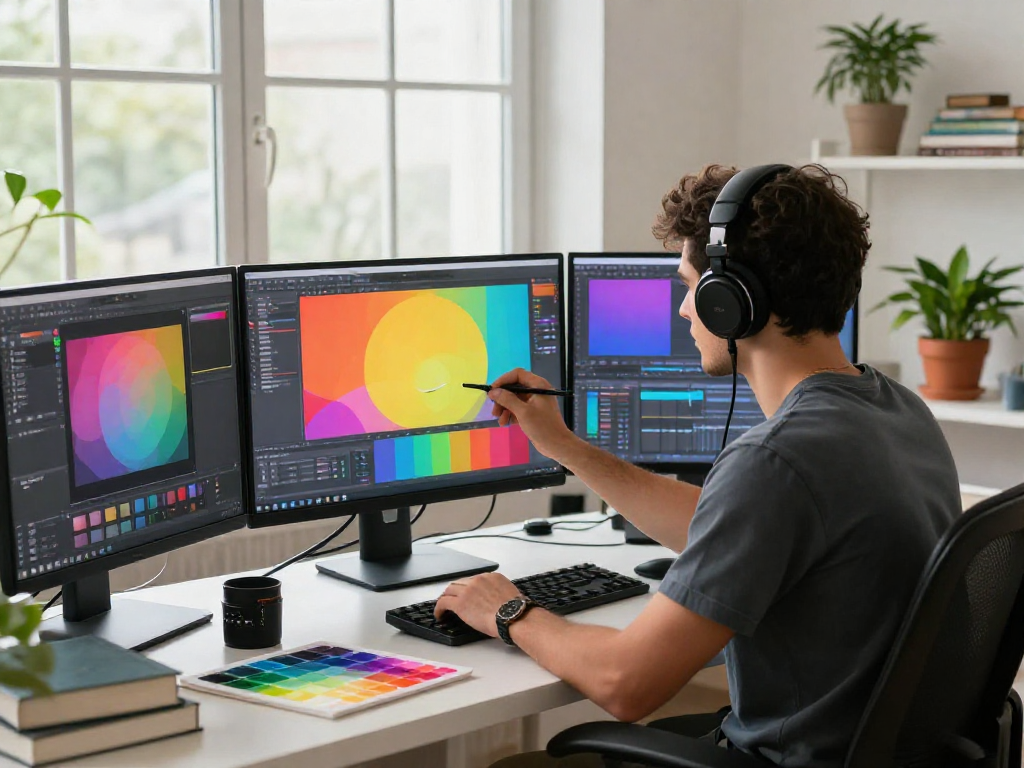
The paint-bucket tool is an essential feature available in many graphic design and image editing software, including web-based applications like MagicPicPro. This tool allows users to quickly fill large areas of an image with a solid color, dramatically speeding up the editing process. Whether you are a beginner or a seasoned graphic designer, understanding how to effectively use the paint-bucket tool can enhance your workflow and results. In this comprehensive guide, we will explore its functionalities, practical applications, and answer frequently asked questions to help you master this powerful feature.
What is the Paint-Bucket Tool?
The paint-bucket tool, often referred to as "flood fill," is a graphic editing tool that allows users to fill an area of an image with a color or pattern. This tool is particularly useful for quickly applying colors to large sections of an image that share similar characteristics. Typically represented by a bucket icon, the paint-bucket tool works by detecting connected pixels of the same color and replacing them with the selected fill color.
How Does the Paint-Bucket Tool Work?
To use the paint-bucket tool effectively, you simply select the tool from the editing palette, choose your desired fill color from a color picker, and click on the area of the image you want to fill. The tool will automatically detect all adjacent pixels that are similar in color and fill them with your selected hue. This capability is governed by a feature known as "tolerance," which determines how closely related nearby pixels must be to be filled.
Common Uses for the Paint-Bucket Tool
- Color Correction: It is often used to make quick color corrections to images, particularly in illustrations and graphics.
- Background Changes: This tool can easily change the background color of an image, which is useful for creating headers or banners.
- Graphic Design: The paint-bucket tool is commonly employed in graphic design to modify shapes and text, providing a uniform color across complex designs.
Exploring Fill Colors with the Paint-Bucket Tool
When utilizing the paint-bucket tool, selecting the appropriate fill color is paramount for achieving desired visual effects. Not only does this tool simplify the coloring process, but it also enhances the overall aesthetics of your designs. paint-bucket features can streamline your design workflows and improve the quality of your output.
Choosing Your Fill Color
The ability to select a fill color is critical when using the paint-bucket tool. Most tools offer a color picker that allows you to choose from a wide spectrum of colors. It's essential to consider the context of your image when selecting a color. For example, using contrasting colors can help elements stand out, while complementary colors can create a harmonious look.
Understanding Fill Tolerance Settings
Fill tolerance is a crucial concept when utilizing the paint-bucket tool. It defines how similar adjacent pixels' colors must be to qualify for filling. A higher tolerance level means that the tool will fill a broader area, often resulting in more significant changes, which can be beneficial or detrimental depending on the desired outcome. Conversely, a lower tolerance will fill only pixels that closely match the selected color, providing more precision but requiring potentially more time to complete an area.
Tips for Effective Color Selection
- Color Consistency: Ensure that the fill color matches other elements within the image for a cohesive look.
- Test Colors: Always test your fill color on a small section before applying it to larger areas.
- Use Color Palettes: Consider using pre-defined color palettes for themed projects to maintain consistency.
Practical Applications of the Paint-Bucket Tool
Understanding how to leverage the paint-bucket tool can significantly benefit users across various skill levels. Whether you're a beginner looking to enhance your skills or a professional designer searching for efficient methods to create stunning visuals, mastering this tool will elevate your image editing game.
Image Editing for Beginners
For beginners, the paint-bucket tool is an excellent way to get started with image editing. Simple tasks, such as filling in background colors or modifying basic graphics, become manageable and enjoyable with this tool. Beginners can benefit from experimenting with different fill colors and tolerances to understand the tool better.
Advanced Techniques for Professional Designers
For more experienced designers, the paint-bucket tool can be used in more advanced ways. Techniques such as creating gradients or implementing layer masks with the paint-bucket tool can enable intricate designs. By combining the paint-bucket tool with other features, such as opacity adjustments and blending modes, designers can achieve stunning effects.
Creating Flat Graphics and Illustrations
The paint-bucket tool excels in creating flat graphics and illustrations where solid colors are necessary. It allows you to fill large areas of color seamlessly, making it ideal for creating logos, icons, and other visual elements that require precision and style. With careful color selection and a refined approach to tolerance settings, artists can create striking designs that captivate audiences.
Addressing Common Questions About the Paint-Bucket Tool
As with any tool, users often have questions regarding its functionality and features. Here, we will address some of the most common queries about the paint-bucket tool to help clarify its uses further.
Can I Undo a Fill Operation?
Yes, the paint-bucket tool supports undo operations. If you inadvertently fill an area you didn't intend to, you can easily revert this action by using the undo shortcut (Ctrl+Z) or by clicking the undo button provided in the interface. This feature not only enhances user experience but also allows for experimentation without the fear of making permanent errors.
Is the Paint-Bucket Tool Free to Use?
Absolutely! The paint-bucket tool within MagicPicPro is completely free to use. Users can access a range of powerful editing features without any subscription fees or hidden costs. There are no watermarks to worry about, making it an excellent choice for both casual users and professionals looking for high-quality editing options.
What File Formats Does It Support?
The paint-bucket tool supports various image formats, including PNG, JPG, WebP, and GIF. This flexibility ensures that you can work with different types of graphics and images without compatibility issues, making the editing process smoother and more efficient.
The Future of Digital Editing with Tools like Paint-Bucket
As we look forward to 2026, the landscape of digital editing continues to evolve, with tools like the paint-bucket offering exciting possibilities for creative expression. Upcoming trends in image editing are likely to enhance user experience and expand the capabilities of graphic design.
Emerging Trends in Image Editing for 2026
Some anticipated trends include the integration of artificial intelligence (AI) in editing tools, making them more intuitive and capable of understanding user needs and preferences. Machine learning algorithms may enable advanced automation in color selection and application, streamlining workflows for designers and artists alike.
Tools and Features to Watch For
Developers are continuously innovating new features that enhance user control and flexibility, such as refined tolerance controls, color blending options, and customizable palettes. These enhancements will likely make tools like the paint-bucket even more powerful and accessible.
Adapting to New Technologies in Design
As design technologies advance, users will need to adapt to new methods and tools. The paint-bucket tool's core principles of simplicity and efficiency will continue to fit within this framework, enabling users to create with speed and precision while exploring innovative techniques and styles.
What is Paint-Bucket Tool Fill Tolerance?
Fill tolerance, as mentioned earlier, plays a vital role in how the paint-bucket tool operates. It influences the range of colors that are considered for filling. Higher tolerance settings can lead to more expansive filling, while lower settings provide more control, allowing designers to work intricately within complex images without altering unwanted areas.
How Can I Use the Paint-Bucket Tool in My Projects?
The paint-bucket tool can be applied in numerous projects, from creating marketing materials to enhancing personal photographs. It can simplify processes like background removal and color adjustments, allowing users to focus on more creative tasks. By incorporating the paint-bucket tool into your toolkit, you can achieve professional results quickly and efficiently.
Are There Any Alternatives to the Paint-Bucket Tool?
While the paint-bucket tool is a staple in image editing, various alternatives exist, including gradient tools, brush tools, and selection-based fill methods. For more information, paint-bucket offers valuable insights. These alternatives can often achieve similar results but may require more manual adjustments, depending on the desired outcome. Understanding these alternatives can provide users with a broader range of techniques to select from, enhancing their creative capabilities.